Tbh, I don’t even know who needs to hear this, but this is mainly just a log for my future self.
I mentioned this in my February recap, but turns out, setting “quotas” didn’t really work for me. It just felt like a chore. So, I did a total 180 and pivoted the tool into a pure logging app instead.
I also spent some time fine-tuning the code, and man, Clip Studio Paint (CSP) has some weird-ass quirks that kept tripping me up. 💀
This is basically just me geeking out over programming and has zero to do with actual art, but if you’re into the technical side of things… here’s the tea. 🍵
Dev Log: My Custom Art-Tracker for Windows 11 🛠️
【Specs Recap / TL;DR】
OS: Works like a charm on Windows 11.
The Goal: You set your daily grind target in minutes.
Smart Tracking: It only counts down when CLIP STUDIO PAINT (CSP) is the active window AND I’m actually drawing (no idle cheating allowed lol).
The “Overtime” Mode: Once the timer hits zero, the text turns blood red and starts counting up. It’s basically the app telling me, “Yo, you’re grinding extra hard today.” 🔥
Persistence: The time stays saved even if I rage-quit or close the app, until I manually reset or update the goal. No escaping the grind!
The Tech Stack: C# + WPF for the win 🚀
Pivot: From “Nagging Boss” to “Data Scientist” 📊
【The Real Talk】
Let’s be real—setting quotas didn’t do squat for me. There was zero pressure, so I just ended up ignoring it.
Then it hit me: I used to spend hours analyzing sales logs in MMORPGs back in the day. I lowkey love raw data. So, I pivoted. Instead of a countdown of doom, I’m turning this into a full-blown logging tool to track my daily grind.
Seeing the numbers go up is way more satisfying anyway.
Here are the new specs:
- Hybrid Timer: Switch between countdown (stress mode) and count-up (zen mode) on the fly.
- Database Integration: Saving everything to a DB so I can nerd out over the stats later.
- Project-specific Tracking: I want to see exactly how many hours I poured into each specific piece.
- UI Overhaul: Making it look clean and modern.
Spoiler: That third point? Absolute nightmare to implement. 💀
New Update: The “Hustle vs. Chill” Toggle ⚡️
I realized that seeing my total “grind time” go UP actually gives me way more of a dopamine hit than watching a countdown hit zero. It’s like leveling up in an RPG. So, I added a Count-up mode!
But hey, I kept the Countdown mode too, just in case I ever decide to tackle a “1-hour drawing challenge” (don’t hold your breath lol). I added a toggle right on the main screen so I can flip between “Chill Mode” and “Hardcore Mode” on the fly.

Smart Reset: When I hit reset, Count-up goes back to zero, while Countdown snaps back to my preset goal. Smooth.
Status Indicator: Now shows exactly which app I’m tracking. It’s a small detail, but it makes the UI feel way more “pro.”
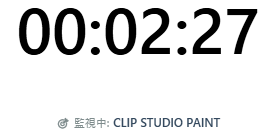
Under the hood: Did a bunch of boring refactoring on the config files. You won’t see it, but the backend is much cleaner now.
This part was a breeze! ✌️
Leveling Up: Migrating to a Real Database 🗄️
I’ve been thinking about this since Day 1, and I finally did it: I swapped out those messy text logs for a proper database.
I went with SQLite because it’s lightweight and gets the job done without any fuss. No complex locking or fancy setups—just raw data, straight up.
Right now, it’s a tiny-ass DB with just a single table, but it’s a huge step up.
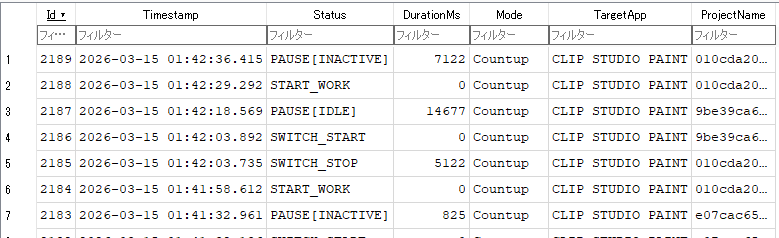
I added a ProjectName column that stores a hash value (my secret sauce for the next feature) to use as an aggregation key.
Down the road, I might add a separate “Labels” table to map those hashes to actual project names, but eh… that’s a problem for future me. For now, it’s working like a charm, and the migration was honestly a breeze. ✌️
The Final Boss: Per-Project Tracking 🐉
This… this was an absolute nightmare.
My goal was to grab info from the specific illustration I’m working on in CLIP STUDIO PAINT. Sounds simple, right? WRONG. >
CSP is a total black box when it comes to its internal data. I had to scrap my entire approach and pivot three freaking times before I finally cracked the code. It was a straight-up battle of trial and error.
I went through three different iterations of “Wait, why isn’t this working?!” until I finally landed on a solution that actually sticks. It’s been a wild ride, but I’ve finally made it happen.
The Wall of CLIP STUDIO PAINT: Why standard APIs fail 🕵️♂️

Check out the title bar in the pic. CSP shows the filename of the active canvas—in this case, the Calliope Mori fanart I finished the other day.
Normally, grabbing this info on Windows is a total no-brainer. You just call the GetWindowText API, and boom, you’ve got it. But CSP? It’s built different. No matter what I tried, the API only returned a generic “CLIP STUDIO PAINT” string. It was stone-walling me. 🧱
I thought maybe I was just looking at the wrong UI element, so I pulled out the big guns: I used the Windows Screen Reader (the accessibility tool for the visually impaired) to see what the OS “sees.”
Results? Absolute zero. The screen reader couldn’t detect the filename either. It’s like that text exists in another dimension. I guess since it’s a drawing app, they didn’t prioritize accessibility features for UI text, but man… talk about a dead end. 💀
Attempt #2: The OCR Trap & My MacGyver Solution 🛠️
Since simple APIs failed, I thought: “Fine, I’ll just use OCR (Optical Character Recognition) to read the screen.”
Windows 11 has a built-in OCR engine (the one in Snipping Tool), and it works like a charm. So, I tried calling that same engine from my code. Easy, right?
Nope. I’m a total noob when it comes to OCR, and man, it was a disaster. I spent hours tweaking brightness, scaling, and binarizing images with Gemini’s help, but I couldn’t get it stable. If it read the Kanji, it messed up the numbers. If it got the numbers, the Kanji became gibberish. Snipping Tool is actually cracked—Microsoft’s engineers are on another level. 💀

I hit a dead end, so I ditched OCR entirely. Instead of trying to read the text, I went “guerilla style”: I started comparing the captured images themselves. >
If the new screenshot matches the previous one, it’s the same project. If it changes, it’s a new key. It was a long, painful grind, but I finally made it work. I’m exhausted, but the tool is finally ALIVE! 🚀
The Glow-Up: Fresh UI & Dark Mode ✨
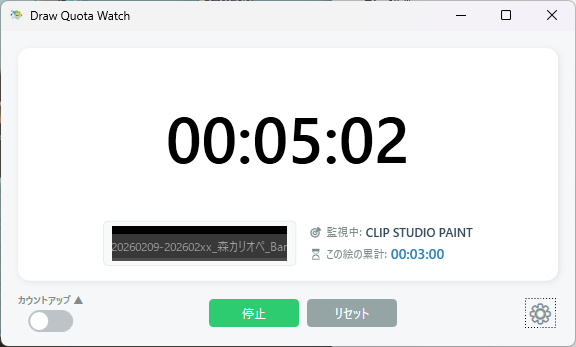
Last but not least, I gave the whole UI a major facelift.
I even designed a custom app icon to make it feel official. Plus, I added a Light/Dark mode toggle.
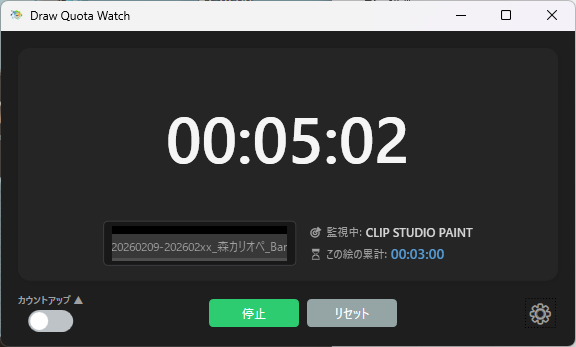
Look, I know it’s just a tool for myself, so I didn’t need to go this hard on the visuals… but why not? It’s all about the vibes. Switching to Dark Mode just hits different when I’m grinding late at night. 🌑🌙 It was a nice change of pace from all that heavy backend coding.
What’s Next? (And the price I paid…) 📈
Now that the data is structured, the possibilities for analysis are endless. Since the logs track both timestamps and project IDs (those sneaky hashes), I can eventually see exactly how many hours I poured into each piece.
The analysis dashboard isn’t built yet, but I can just dump the raw logs into Google Sheets and whip up a daily graph in seconds.
There’s still work to do—like a “Label” feature so I don’t have to guess what each hash means—and I’ve gotta fix a few bugs. Plus, I’ve gotta pace myself because of my Gemini quota lol.
Overall, I’m pretty stoked with how it turned out. The only downside? I spent so much time dev-ing this thing that I haven’t made any progress on my actual art this month. 💀 The struggle is real.
Catch you guys in the next update—hopefully with a finished drawing next time! ✌️🎨
Comment